top of page

How can we help you?

Accessiway Widget

Operation

Add a Title

The law protects the end user and penalizes whoever delivers the service to the public. The manufacturer has to provide a product that's compliant at the source, but your company is answerable for how that kiosk works inside the branch or store. Our on-site report also brings clarity to the boundaries of responsibility — to what you can require from your supplier under contract.

Operation

Add a Title

While human assistance is a recognized reasonable accommodation that can fill immediate operational gaps, true compliance is rooted in user autonomy. The ultimate goal of any self-service device is to allow every customer to complete transactions independently. Our audit evaluates your current operational workflows to help you transition from temporary human workarounds to seamless, native device accessibility.

Operation

Add a Title

Yes — it's built for exactly that. For every barrier you get the precise technical solution, the priority for action, and the relevant EN 301 549 criterion: your developers or hardware suppliers know right away what to fix and why, without wasting time interpreting the regulation.

Operation

Add a Title

Because the same kiosk can be perfectly accessible in the lab and become completely unusable once installed. What makes the difference is the real context: glare that washes out the screen, a mount that blocks access to the POS terminal, the wrong installation height.These aren't manufacturing defects, but installation issues — and they only become visible where the device actually operates, tools in hand.

Operation

Add a Title

We focus on the most critical stations — the real installations with the highest risk of barriers (from lighting, heights, or maneuvering space). By validating the hardware and software model in these contexts, the technical result and the documentation become applicable and scalable across every identical device in your fleet.

Operation

Add a Title

That's exactly the right time to bring us in. Our live support sessions include hands-on training: your team learns to think accessibility from the first sketch, sees in real time how our recommendations become well-built components, and develops an accessibility-first mindset. It's not a black box—it's direct partnership.

Operation

Add a Title

Each template gets a thorough initial review, followed by one re-test cycle after you've applied our recommendations. Usually one re-test per deliverable is enough. If a template changes significantly after the first review (new sections, different flows, completely redesigned layout), it counts as a new deliverable and gets a fresh review.

Operation

Add a Title

Your feedback includes: guidelines applied to your design files (with examples specific to Figma, Sketch, or Adobe XD), detailed audit results and prioritized recommendations, and practical steps for implementing each change. Important: we don't do deep code-level analysis. If you need evaluation of code already built, that's a separate service (traditional audit or remediation).

Operation

Add a Title

The number of templates and frames depends on your project's size and complexity. As a general rule, mid-sized projects need twenty five to thirty design frames for full coverage. If you ship multiple products a year or have a packed roadmap, a higher tier package usually saves money in the long run. We can give you a free estimate by reviewing your project and goals together.

Operation

Add a Title

We work with Figma, Sketch, Adobe XD, and other standard design platforms. All reviews and audits happen directly in your design files, on your frames and templates, before development starts. Unsure if your tool is supported? Get in touch and we'll confirm.

Operation

Add a Title

And a answer to that question

Operation

Add a Title

The badge can be placed on your website to show that accessibility work has been independently verified. Visitors can click it to view details about the evaluation process and accessibility status.

Operation

Add a Title

The badge is valid for one year. To maintain it, websites must undergo periodic review to ensure accessibility improvements are maintained as the site evolves.

Operation

Add a Title

User testing can be performed on websites, mobile applications, digital platforms, and key user journeys such as checkout flows, account access, or service booking.

Operation

Add a Title

An audit identifies technical accessibility issues, while user testing reveals how real users experience your platform. Combining both approaches provides a more complete understanding of accessibility.

Operation

Add a Title

The Academy offers both technical and non-technical courses, covering topics from accessible development and design to inclusive communication and organisational best practices.

Operation

Add a Title

Accessibility training can benefit developers, designers, content creators, HR teams, and communication professionals who want to integrate inclusive practices into their daily work.

Operation

Add a Title

Accessible PDFs should comply with standards such as WCAG 2.2 and EN 301 549 to ensure compatibility with assistive technologies and regulatory requirements.

Operation

Add a Title

Yes. Existing documents can be remediated by adding proper tags, structure, alternative text, and navigation elements so they can be interpreted correctly by assistive technologies.

Operation

Add a Title

Accessibility statements should be reviewed periodically and updated whenever significant changes are made to the website or when accessibility improvements are implemented.

Operation

Add a Title

In many regions, including the European Union, public sector organisations and certain private companies are required to publish an accessibility statement explaining the accessibility status of their digital services.

Operation

Add a Title

The widget is designed to load efficiently and operate without significantly affecting website performance or page speed.

Operation

Add a Title

No. The widget complements accessibility efforts but does not replace proper accessibility implementation. It works best when used alongside accessibility audits, remediation, and inclusive design practices.

Operation

Add a Title

You receive a structured report outlining identified accessibility issues, their severity, and recommended solutions. Our team can then support remediation and re-testing to verify that improvements meet accessibility standards.

Operation

Add a Title

The timeline depends on the size and complexity of your platform. Smaller websites can often be reviewed within a few days, while larger platforms or applications may require a more comprehensive evaluation.

Operation

Add a Title

If you are using a popular CMS or website builder, we probably have a dedicated guide for you. Otherwise, you can follow these steps to easily install Accessiway: Go to your account area by clicking on "Account" in the top right-hand corner on the Accessiway website. Enter the 'Installation' section. Quick and basic installation: Accessiway will appear with our default settings and design, all to provide the best customer experience. Custom and advanced installation: allows you to customise the interface according to your brand guidelines and colours. Once you have chosen your desired installation method, copy and paste the presented script. Access your website builder and paste the code into the footers menu of your website, or place it just before the body end tag body.

Operation

Add a Title

Installing Accessiway Widget via Google Tag Manager is quick and easy. Just follow the steps below. Log in to your Tag Manager account at the following link: https://tagmanager.google.com with your e-mail address and account password. Change the name of the tag to 'AccessWay - Pixel' or a similar name and click on the first option 'Tag Configuration'. On the right-hand menu, scroll down and select 'Custom HTML'. In the empty HTML field, paste the implementation script you received from us when you registered your site for our service. If you do not have an implementation script, log into your Accessiway account, click on the "Download" section and download our Help. After pasting the script, just below it, you will see the "Activation" area. Click this button or the edit icon on the right. In the new window that opens, select "All pages". After clicking on "All Pages", Tag Manager will take you back to the previous window, where you must click on the "Save" button to save the tag. After saving the tag, return to the main screen of your account in Tag Manager and click on the 'Submit' or 'Publish' button in the top right-hand corner.

Operation

Add a Title

Follow these simple steps: In the website editor, click on the menu icon in the top left corner. Click on 'Head Code'. In the empty field 'Site Header Code', paste the implementation script you received from us when you registered your site on our service. If you do not have an implementation script, go to your Accessiway account, click on 'Download'.

Operation

Add a Title

Follow these simple steps: Click on 'Settings' in the side menu of the 'Mysite' dashboard. Scroll down to the 'Advanced' panel and click on 'Custom Code'. Select 'Add Code' under 'Body-End', and then click 'Add Code'. In the dedicated area, paste the implementation script you received from us when you registered your site on our service. If you do not have an implementation script, log into your Accessiway account, click on the "Download" section, and download our Guide. In the same window, add a name and select All Pages (so that the entire site is made accessible). From the drop-down menu presented, choose the option "Load code on each new page". Select the last option "Body-End" and then click "Apply".

Operation

Add a Title

Follow these simple steps: Open the Weebly editor and click on 'settings'. In the menu on the left-hand side, click on 'SEO'. Add a site description. In the 'Footer Code' section, paste the implementation script you received from us when you registered your site for our service. If you do not have an implementation script, log into your Accessiway account, click on the 'Download' section and download our Guide. Click "Save" at the bottom of the page. Click "Publish" in the top right-hand corner of the page. That's it! You have successfully installed.

Operation

Add a Title

Follow these simple steps: Go to your Dashboard and click on 'Settings' for the website to which you want to add Accessiway. On the settings page, click on "Custom Code". Scroll down until you see the "Footer Code". In the empty 'Footer Code' field, paste the implementation script you received from us when you registered your site on our service. If you do not have an implementation script, log into your Accessiway account, click on the "Download" section and download our Help. After pasting in the code, click on "Save Changes" and publish your site to make the changes. That is all! You have successfully installed.

Operation

Add a Title

Follow these simple steps: From the Dashboard, in the menu click on "Design" and select the option "File Editor". Within the "File Editor", you will find a list of editable files on the right-hand side under the title "Shortcuts". The first title of the "Theme Files", which is always the active template of your HTML file, always starts with "template_" and ends with ".html". Once located, simply click on it, and you will be asked, with a text editor, to edit the HTML code of your template. N.B: If you have changed templates, you should find a selection box at the top left of the page, in which you can search for other templates installed on your website, and install Accessiway on those as well. Accessiway will work wherever you place the code within your template. However, we suggest putting it right before the closing body body tag, which is always the second-to-last line of the file. In the dedicated area, paste the implementation script that you received from us when you registered your site on our service. If you do not have an implementation script, log in to your Accessiway account, click on the 'Download' section and download our Help. Once you have pasted the code, click the 'Save' button in the top right-hand corner and update your website to make the changes. That is all! You have successfully installed.

Operation

Add a Title

Follow these simple steps: Go to the Administration Area menu and click on 'Settings'. Select "Advanced". Select "Code Injection". N.B: At the time of writing this guide, this feature is only available with Squarespace's premium Business and Commerce Plans. In the empty "Footer" field, paste the implementation script you received from us when you registered your site on our service. If you do not have an implementation script, log into your Accessiway account, click on the "Download" section and download our Guide. After pasting in the code, click on 'Save'. That is all! You have successfully installed.

Operation

Add a Title

Follow these simple steps: Once you are logged in to the site management area, click on 'Online Store' in the bottom left menu and then click on 'Themes'. Click on the 'Actions' drop-down menu and then on 'Edit Code'. Just before the closing body tag, paste in the implementation script that you received from us when you registered your site on our service. If you do not have an implementation script, log into your Accessiway account, click on the 'Download' section and download our Help. In the top right-hand corner, click on 'Save'.

Operation

Add a Title

Follow these simple steps: From within the Dashboard, click on the Settings icon in the top right-hand corner. On the left-hand side of the menu click on "Website" and then click on "Pages". On the "Templates" page, scroll down to "Site footer HTML". In the space "Site footer HTML", paste the implementation script that you received from us when you registered your site on our service. If you do not have an implementation script, log into your Accessiway account, click on the "Download" section and download our guide. After pasting in the code, click on 'Save' and then publish your site to make changes.

Operation

Add a Title

Follow these simple steps: In your administration dashboard, click on "Storefront". Click on "Script Manager" and on this page click on the "Create Script" button. Add the script name and a description (of your choice). For the following fields select these choices: "Location on page", select "Footer". "Select pages where script will be added", select "All pages". "Script category", select "Essential". "Script type", select "Script". In the empty field, paste the implementation script you received from us when you registered your site on our service. If you do not have an implementation script, log into your Accessiway account, click on the "Download" section and download our Help. After pasting in the code, click on 'Save' and then publish your site to make changes.

Operation

Add a Title

The following guide is compatible with in Drupal 7 and later versions. To implement our installation script, please follow the steps below: Download and install the "asset_injector" module at this link https://www.drupal.org/project/asset_injector. We recommend downloading the latest version of the module available, which can be found at the bottom of the page under "Releases". Once you have installed the module go to Configuration > Development > Asset Injector > JS Injector and insert the Accessiway Widget script removing the script tag when opening and closing the script. Set "add on every page" or "show on every page" to be able to display the Accessiway widget on every page.

Operation

Add a Title

To install Accessiway Widget, if your website is integrated into the Joomla system, you must implement our installation script directly in the code of your site, just before the body end tag body, via the management system or FTP. Follow the steps below: Create your Javascript file. Add your custom code in a file called mycustom.js. Upload that file to your site. For example, we will upload the file to our template, but it could be anywhere: templates/mytemplate/js/mycustom.js. Install the "ADD CUSTOM JS" plugin. Go to the extensions page, search for "Add Custom JS" and click on the download button. The zip file you downloaded must be unzipped to discover the installers. You will see two folders containing a module and a plugin. In this case, we use the plugin (addcustomjavascript.zip). Login to your Joomla administrator area and go to Extensions > Manage. Click on "Upload a Package File" and look for the file addcustomjavascript.zip. Click the 'Upload and install' button. Setting up the plugin: Go to Extensions > Plugins and search for 'System - Add Custom Javascript'. Open the plugin for editing. In the option Custom Javascript File Path, enter the path to your javascript file. In this example, we have chosen: templates/mytemplate/js/mycustom.js. Enable the plugin. Choose "Order last" from the Ordering option. Click the 'Save and Close' button. Check the result. Refresh your site to confirm that your custom Javascript code is loaded.

Operation

Add a Title

You must implement our installation script directly in the code of your site, just before the body end tag body. Follow the steps below: Download, install and activate a plugin for inserting Headers and Footers (e.g. "Insert Headers and Footers" or "Head, Footer and Post Injections"). Once the plugin has been activated, access the interface by going to the Settings menu, where you will find an entry dedicated to the plugin. In the empty 'Footer' box, paste the implementation script you received from us when you registered your site on our service. If you do not have an implementation script, go to your Accessiway account, click on 'Installation'. After pasting the code, click Save and publish your site to make the changes.

Operation

Add a Title

It is always recommended to carry out a user test in order to receive feedback from final users of the services created. When a user test is not carried out by a user with a disability it is referred to as "heuristic", a heuristic usability evaluation must be carried out by an expert who knows the touch points necessary to carry out a correct analysis.

Operation

Add a Title

The "User test" Consulting Service follows the AgID guidelines, therefore: The organisation of the testing project is the responsibility of the RFU ~ Human Factors Manager User test 3 People: defined by AgiD "Below Threshold". User test 5 People: defined by AgiD "Above Threshold". How the user test is composed: The RFU must know the Disabilities from a Humanistic point of view, he/she must not be a technician (neither the RFU nor the user tests). A Human Factors Officer (RFU) is mandated to carry out a prior analysis of the application under evaluation and structure the activities to be administered subsequently to the pool of employees with disabilities. The Human Factors Officer (RFU) identifies persons with different disabilities to whom the test, consisting of the various activities to be carried out independently, is to be administered. The types of disabilities that can be called upon for assessment include motor, visual and cognitive disabilities. Following the completion of the activities by staff members The RFU administers the questionnaire on the twelve factors relevant to the accessibility/usability of the website produced by AGID. The RFU carries out a semi-structured interview with the collaborators aimed at exploring the user experience.

Operation

Add a Title

Carrying out a User Test means recreating model situations in order to assess the level of usability of a website. It therefore consists of an analysis of the level of accessibility, carried out by users with disabilities who reproduce tasks on the ICT tool being evaluated, supervised by an accessibility expert. At the end of the assessment, qualitative feedback of the user experience is given in the form of a report.

Operation

Add a Title

Accessibility services make it possible to increase the level of compliance and usability of the site.

Operation

Add a Title

You can find all the useful information about our accessibility services in the Services section. To understand which services are best suited to your needs, you can book a call with one of our dedicated experts who will accompany you on an introductory course to outline all the necessary steps to achieve the highest possible level of compliance and accessibility for your site.

Operation

Add a Title

Our accessibility services are designed to be tailored to each client's needs, so to find out the price, you will need to contact a dedicated Account Manager, who will follow you through an introductory process, helping you to outline the best service to suit your reality. Once the dynamics have been clarified, we will provide you with a dedicated offer that you can consult.

Operation

Add a Title

Ensuring a 100% level of legal compliance and real website usability in the area of Web Accessibility is very complicated. The Accessiway software is a very efficient and effective first step for a website, as it is able to remediate more than 70% of the elements on the site in an automatic and automated way. This part, as explained, is only the first step towards the highest possible level of compliance for the website that will be possible to achieve, thanks to the consulting services provided by top experts in the field.

Operation

Add a Title

Yes, absolutely. All our accessibility services follow the 'Best Practices' regulated and defined by AgID. In particular, the Accessibility Declaration is carried out on the AgID model required for public administrations and private companies with an average annual turnover - in the last three years - of more than 500M. Likewise, the User Test service complies with all the points listed by the Agenzia per l'Italia Digitale.

Operation

Add a Title

Article 3-Quater of the Stanca Law stipulates that all the subjects identified in Article 3 and 3.1bis, i.e. the Italian Public Administration and private companies with an average annual turnover - in the last three years - of more than 500M must submit a self-declaration to AgID by 23 September each year. The Accessibility Declaration indicates and describes the objectives and results achieved for the accessibility of one's own website. Among the various consulting services offered by Accessiway you will also find support in the compilation of the Declaration, which includes a heuristic report of usability of the site and the declaration itself that you can use to fill out the AgID form. The service is designed specifically for entities that fall under the obligation, but also for private companies that have embarked on a path to accessibility.

Operation

Add a Title

Our training programme comprises several modules: Introductory Module: Disability and Assistive Technologies - The course is designed for any professional figure (technical or not) as it provides a general perimeter on the world of web accessibility. It offers a clear overview of the world of disability in relation to digital dynamics. Participants will learn about the most frequent disabilities, the main barriers in the digital world and assistive technologies. Furthermore, the European and Italian regulatory framework is introduced, respecting all AgID best practices and standards defined in WCAG 2.1AA. Technical Module: Content Creator - The course is designed for those working in the field of digital content creation. The aim of the course is to provide content creators with all the practical information they need to do this correctly. Step by step, element by element, concrete cases will be studied and indications given on how to write all content in the correct way, therefore accessible and usable for people with disabilities. Respecting all AgID best practices and standards defined in WCAG 2.1AA. Technical Module: UX Designers - The course is designed for those working in the field of digital product development. It offers a clear explanation of Italian and European regulations, international standards and recommendations for the development of accessible (WCAG 2.1 Compliant) and usable (heuristic analysis, thinking aloud protocol) digital products. Accessibility and design of elements such as: fonts, colours, spaces, sizes, icons, buttons and interactive elements of interfaces; from the design phase to verification and maintenance. Complying with all AgID best practices and standards defined in WCAG 2.1AA.

Operation

Add a Title

You can select the services on the site. To complete your purchase, simply call one of our Sales Accounts, who will guide you through the installation of the software and the scheduling of consultancy services.

Operation

Add a Title

Yes, you can make graphic adjustments completely independently from your dashboard to adapt the colour and position of the interface to the design of your site. To do this, you will have to log in to the private area by clicking on the "my account" button at the top right of the Accessiway home page. Once you have logged in, you will be able to consult, among the various items on the left, the "installation" menu from which you can copy the software activation script. In addition, a semi-automatic configurator will be available to adjust the design of the interface and of the button that will appear on your website. To do this, all you have to do is fill in the various customisable fields (colour, size, position, and much more). In real time you will see that the script will change according to the adjustments you make. Once you have customised all the aspects you are interested in, you can copy the updated code and copy it to your site. To help you through the installation process, we have prepared guides that you can consult at any time at the following link. In any case the Accessiway team remains at your complete disposal to offer you support, if you are unable to make the changes yourself please contact us via chat or by phone on +39 01119622826.

Operation

Add a Title

The accessibility of the Accessiway website is also guaranteed within the user areas. By accessing them, it is possible to view the interface and make all the necessary adjustments in order to obtain customised navigation according to one's needs.

Operation

Add a Title

Should you experience any malfunctions with your dashboard, we recommend clearing your browser cache. If this does not solve the problem, please contact the Accessiway support department, available from 9 a.m. to 6 p.m. Monday to Friday.

Operation

Add a Title

If you forget or lose your credentials, don't worry, you can access your reserved area by following a few simple steps. Below the email and password entry fields you can click on the phrase "Forgot your password?" which will allow you to enter your email address. You will then receive an e-mail containing instructions on how to complete the operation.

Operation

Add a Title

acceScan has no legal authority, it provides a score on the compliance status of your website's page templates, which can help you and your team decide on a course of action.

Operation

Add a Title

Web accessibility is a process, so to strive for the highest level of compliance and accessibility you need to rely on expert consultants. As such, we always recommend combining the automated services of Accessiway Widget software with our consultancy services that will help you understand the legal requirements and execute them according to best practices (those defined by AgID), so that you can work together to achieve the highest possible level of compliance for your website.

Operation

Add a Title

WCAG 2.1 is a 1,000-page guide explaining how accessible websites should look and function for people with disabilities, a group that comprises about 20 per cent of the world's population. The WCAG covers the needs of a wide range of disabilities, in particular blind people and their use of screen-readers such as JAWS, NVDA and Voiceover, people with motor disabilities and their needs for keyboard navigation, people suffering from epilepsy, colour blindness, cognitive and learning disabilities and other visual impairments. The first WCAG were published in 1999, revised in 2008 as WCAG 2.0 and updated again in 2018 in the form we use today, the 2.1 WCAG 2.1 at AA level: GUIDELINES ESTABLISHING THE STANDARD FOR WEB ACCESSIBILITY LEGISLATION. THEY HAVE BEEN ISSUED BY A NON-LEGAL BODY, FOR THIS REASON THEY HAVE NO LEGAL VALUE. WCAG2.1AA INSPIRE LEGISLATION;

Operation

Add a Title

The European Directives that regulate the topic of web accessibility at supranational level are: DIRECTIVE (EU) 2016/2102 OF THE EUROPEAN PARLIAMENT AND OF THE COUNCIL of 26 October 2016 on the accessibility of public sector bodies' websites and mobile applications DIRECTIVE (EU) 2019/882OF THE EUROPEAN PARLIAMENT AND OF THE COUNCIL of 17 April 2019 on accessibility requirements for products and services

Operation

Add a Title

In Italy, the law that regulates web accessibility, i.e. that has transposed the European directives, is Law no. 4/2004 of 9 January 'Stanca Law'. We can turn our attention in particular to the following articles: Article 3: (Providers) - This law applies to the public administrations referred to in referred to in paragraph 2 of Article 1 of Legislative Decree 30 March 2001, No. 165, as amended, to public economic entities, private companies that are concessionaires of public services, companies regional municipalised companies, public assistance and rehabilitation and rehabilitation agencies, transport and telecommunications companies with a majority public capital holding and companies contracted to provide computer services, bodies governed by public law bodies Article 3.1a: 1-bis. This Law also applies to legal entities legal entities other than those referred to in paragraph 1, which offer services to the public public through websites or mobile applications, with an average turnover average turnover, in the last three years of activity, of more than ((five hundred)) million euros. Article 3 -c: Providers shall provide and periodically update a detailed, exhaustive and clear accessibility declaration on the and clear statement on the compliance of their respective websites and mobile applications with this law. Article 8.3: The administrations referred to in Article 3, paragraph 1, within the within the limits of budgetary availability, shall provide professional refresher courses on accessibility ((, including those relating to the methods of creating, managing and updating of accessible content of websites and mobile applications)).

Operation

Add a Title

The Agenzia per l'Italia Digitale (Digital Italy Agency) is the technical agency of the Presidency of the Council of Ministers whose task is to ensure the realisation of the objectives of the Italian Digital Agenda and to contribute to the spread of the use of information and communication technologies. The controlling body of the Digital Transition that defines the objectives and methodologies of the Digital Agenda, it pursues the highest level of technological innovation in the organisation and development of the public administration and in the service of businesses and citizens.

Operation

Add a Title

Accessiway is GDPR compliant because no personal or sensitive end-user data is processed or stored. The only personal data that is transmitted to our servers is the IP address, but this is not transmitted unencrypted as the transmission is end-to-end encrypted. The software works client-side in a local session, so the other data we handle (purely technical: css attributes and html elements) are saved in 'Local Storage' and not on Accessiway's servers. In addition, the company responsible for processing the data is Israeli and the owners of the servers, even if they are US-based, have no access to the data (precisely because of the end-to-end encryption). Israel is on the GDPR White List.

Operation

Add a Title

accesScan does not collect data from your website and complies with the GDPR and CCPA data privacy regulations

Operation

Add a Title

Accessiway is GDPR compliant because no personal or sensitive end-user data is processed or stored. The only personal data that is transmitted to our servers is the IP address. The software works client-side in a local session, so the other data we process (purely technical: css attributes and html elements) are saved in 'Local Storage' and not on Accessiway's servers.

Operation

Add a Title

At www.accessiway.com you can select and place in your shopping cart all the services you consider useful and necessary to improve the level of accessibility of your site, after which you can get in touch with one of our consultants to get an expert's opinion and to define the payment method.

Operation

Add a Title

Checking your site's page count is easy, just do a browser search. Type 'site:www.esempiosito.com' into the search bar. At the top before the list of sites you will find the words "About ... results" and that will be the approximate number of indexed pages under the domain you typed after site: If you think this number is inaccurate, please contact our representatives via our live chat on the site. We accept SiteMap or any other type of documentation showing the number of pages on the site.

Operation

Add a Title

Our automatic software processes each domain, even if it is a sub-domain, and continues to process it every 24 hours. This means that the process carried out on a main domain is the same on a sub-domain, just as in terms of the amount of resources needed to make them accessible there is no difference. In fact, each sub-domain receives a Declaration of Accessibility and a certification of the specific services performed on the individual sub-domain. For these reasons, it is necessary to apply for several licences for several domains/subdomains.

Operation

Add a Title

The very competitive price of annual licences for Accessiway Widget is "affordable" for several reasons. The high number of customers who have decided to use this software to start on the path to accessibility. The fact that it autonomously and automatically carries out more than 75% of the corrections required to fix elements on the site. Without Accessiway Widget, these corrections would have to be carried out manually by IT developers, and this entails a 400% higher expense and significantly longer waiting times.

Operation

Add a Title

No, using Overlay technology and our consultancy services the site design and functionality - in the part visible to the user will remain the same. When a specific navigation profile is selected by the user with the specific disability, the Frontend will be modified to allow the site itself to be usable, but without modifying the source code and, above all, only in the local client-side session.

Operation

Add a Title

Yes, through the services offered by Accessiway it is possible to make any website, App, WebApp or platform accessible, i.e. usable by persons with disabilities (cognitive, visual and motor).

Operation

Add a Title

Web accessibility is a process that must be continually monitored and updated, it is a subject that changes annually at the regulatory level with new burdens for specific categories and fulfilments that must be completed within well-defined deadlines. It is therefore necessary to rely on expert consultants to keep the site up-to-date. (This does not mean having a daily or weekly exchange of information, but for us at accessiway it is essential to allow all our customers to be aware of any changes or improvements that need to be made, so as to always be compliant with all legislative and social obligations)

Operation

Add a Title

To make a site accessible, it is necessary: Screen-reader compatible: all site content can be read accurately and clearly by screen-readers and assistive software installed on the operating system and used by blind people to access digital navigation content Compatible with Keyboard Navigation: Fully navigable and operable using only the keyboard, without the need for a mouse. This function is used by people with motor disabilities. Safe from possible induction of epilepsy episodes: Animations can be stopped so that people with epilepsy can navigate safely without risking a seizure. Understandable by people with cognitive disabilities: Written in very simple, understandable words or alternatively include a glossary or dictionary to help readers with cognitive and learning disabilities understand the content correctly.

Operation

Add a Title

Making a website accessible requires specific know-how and consulting work by one or more professionals.If the site is already existing, it is necessary to check every single element of the site and remediate it - then add specific information (contrast ratios, ARIA labels, alternative texts and an extensive list of other specific requirements in WCAG 2.1 AA), such that they can be understood by assistive technologiesIt is essential to update and remediate all additions made to the site, so it is advisable to have a long-term strategy. Accessibility is not a one-off project, but one to be followed over time.

Operation

Add a Title

Each site has specific characteristics, so it is impossible to have a universal time frame. We, at Accessiway, thanks to one of our services: Accessiway Widget, can guarantee in 24/48 hours a first step towards a level of accessibility that guarantees usability (about 85%) for the categories of people in WCAG 2.1

Operation

Add a Title

Yes, Article 8.3 of the Stanca Law is very clear on this charge: "The administrations referred to in Article 3(1) shall, within the limits of budgetary availability, provide professional refresher courses on accessibility ((including those relating to the methods of creating, managing and updating of accessible content of websites and mobile applications))".

Operation

Add a Title

accessScan is a free testing tool offered by Accessiway, used to validate the level of compliance of a website. accessScan is open to everyone and can be used by anyone to determine whether their website is accessible to people with disabilities and complies with national guidelines and laws. accessScan scans websites using the same AI as Accessiway Widget, reporting any accessibility errors and producing a comprehensive report of compliance results. It does this in seconds and is completely free of charge. Give it a try now!

Operation

Add a Title

Accessiway is GDPR compliant because no personal or sensitive end-user data is processed or stored. The only personal data that is transmitted to our servers is the IP address. The software works client-side in a local session, so the other data we process (purely technical: css attributes and html elements) are saved in 'Local Storage' and not on Accessiway's servers.

Operation

Add a Title

Web accessibility is a process and it is not enough to have software to be able to define oneself as fully accessible and/or compliant. Having a usable site from a practical point of view does not guarantee compliance with the regulations (imposed by L. 9 January 4/2004) because there are requirements that go beyond the navigability of the site, for recipients defined as "providers" in Art 3 L 4/2004, such as the Declaration of Accessibility (art 3-Quarter) and / or the training period (art 8.3). It is therefore necessary, in order to be able to speak of full compliance and accessibility, to also make use of the consulting services offered by Accessiway

Operation

Add a Title

No, Accessiway Widget works in overlay, so it is impossible for the source code to be modified or for the performance of the website to be affected. The loading of the software takes place asynchronously to that of the website, precisely 0.2 seconds later.

Operation

Add a Title

Have you already installed Accessiway Widget on your site, but still do not see the accessibility icon? This can happen for various reasons, but it is easy to solve. Here are some possible reasons and their solutions: 1) The trial period on your site has expired: this simply means that the 7-day trial for which your site was registered has expired. To continue using Accessiway you will need to purchase a licence directly from your account, or speak to one of our sales representatives. 2) The code is not installed correctly: installing the script in the wrong area can cause Accessiway Widget to malfunction. To check if this is the case, go to your site and press F12. Once this is done, a pop-up bar will appear at the bottom of the screen displaying your website's code. When it appears, press Control + F, a search bar will appear at the bottom. In this search field type "acsb", if you see the script the software has been installed correctly. Contact us via the support form by pressing the 'contact us' button or write to us directly in the live chat. 3) Browser cache error: this can happen if you have many files stored in the browser cache from your website (automatically stored to improve loading speed), which shows you the version displayed before installing Accessiway Widget. To correct this error, you simply have to empty your browser cache (this may vary depending on the browser). In most cases, simply go to your browser settings and delete the cached images and files. Once this is done, simply reload the page to obtain the correct display.

Operation

Add a Title

Accessiway is designed to load asynchronously with your site, which means that it will only be loaded and displayed once the website is fully loaded. This is to: Make the entire site accessible, not just specific parts of it. Not affect the speed of the site or its performance in any way. The Accessiway system takes 0.2 seconds to load, which means that the loading time of your site will affect the time it takes to display Accessiway. For example: if your site loads in 4 seconds, Accessiway will appear in 4.2 seconds. If your site loads in 8 seconds, then Accessiway will appear in 8.2 seconds. If you are interested in checking the loading time of your site, we recommend a site called Pingdom. You can access it at the following link: https://tools.pingdom.com. If you still feel there may be an error with the loading of Accessiway, please contact one of our representatives to try and resolve your problem as soon as possible.

Operation

Add a Title

Testing tools such as WAVE and Lighthouse are free tools to check the accessibility level of your website. These tools are useful for checking basic elements of a site such as duplicate links, title hierarchies, duplicate titles, lack of image descriptions (Alt Text), or ARIA labels. However, Accessiway Widget is a tool that works in a client-side local session: this means that compliance tools of this kind will not be able to detect Accessiway Widget adjustments. This is because Accessiway Widget is designed to only activate when a user triggers it as required. This implies no permanent changes on the site. This ensures that all adjustments are easily activated and that the browsing experience of site visitors who do not need these changes is not affected in any way. Therefore, since compliance tools do not access a website in the form of assistive technology, they will not be able to analyse the presence of Accessiway Widget on a website and the resulting accessibility adjustments.

Operation

Add a Title

A website can have many different shades, colours and formats. For people with visual impairments, the wrong colour scheme or font size can make it complicated or even impossible to view the content of your site. Common visual impairments include blurred vision, colour blindness and glaucoma. For example, you use one main colour for the theme of your website: a visitor suffering from colour blindness may not even be able to see it. In other cases, fonts are too compact or too small for a website user, who will not even be able to read what is written on a page. One of the main obstacles to accessible design is that many times a website owner does not want to compromise their website design and branding just for the sake of accessibility: a website is an extension of their business, and many times represents the presentation and first contact with a customer. This makes a company's website, no matter what the market or service, a very important factor! With Accessiway Widget and consulting services, you can stay true to your design and allow people with visual impairments to navigate effectively. How do we make this compromise possible? After installing Accessiway on your site, the new accessibility interface will immediately appear on your website. This interface is an accessibility-based tool, i.e. it allows visitors with visual impairments to make changes on demand for as long as they are on the site. For site users who do not need adjustments, the design of the site will remain intact. UI and design adjustments include changes to content, colour and orientation. All accessibility changes mentioned for visual impairments will be activated simultaneously, allowing the user an easy view of the content.

Operation

Add a Title

The beauty of websites is that they can be designed to display content in the most diverse ways. Unfortunately, some inaccessible elements can be frustrating and even dangerous for some users. People suffering from epilepsy are forced to navigate websites with great caution, due to the risk of triggering a seizure caused by flashing elements such as GIFs, videos or animations. In many cases, these images are looped or autoplay or do not respond to a user's interaction or attempts to interrupt. Put simply, any site can be something akin to a minefield for a person suffering from epilepsy. What does Accessiway do to solve this problem? Accessiway's interface allows site visitors to stop all flashing elements on a page. Instead of scrolling carefully and quickly pausing dangerous elements, epileptic users can pause everything at once before viewing it. This is made even easier by activating the 'Seizure Safe' profile, which simultaneously stops all flashing/blinking elements and reduces dangerous colour combinations.

Operation

Add a Title

Generally, in the context of a website, physical and motor disabilities are defined by the inability to use a mouse to navigate. In general, a keyboard can do everything a mouse can do. The problem is that most websites are not optimised for keyboard navigation, which means that page elements do not respond to commanded actions. As a result, these sites exclude people with motor disabilities. This means that if a website element, such as a popup, form or menu, is not designed to respond to keyboard commands, then there is no way to interact with them without a mouse. For example, we all know that when we enter a website, an image or banner may appear in the form of a popup. If this happens, we click on the X to close it and continue to browse the site quietly. The problem arises if the popup is not optimised for keyboard navigation and does not respond to the command to close the popup: the user will be stuck on the popup, unable to return to the original page. What does Accessiway do to solve the problem? Accessiway Widget makes websites fully navigable via the keyboard. Using the ARIA attributes and contextual understanding of the AI engine, the necessary changes are made throughout the website code. People with motor disabilities can use the buttons to perform any action, from closing popups and forms to opening dropdowns and menus. Furthermore, to facilitate and speed up access to the various parts of the site, users can consult a list of 'useful links' directly from the interface. In this way, navigation is truly accessible and saves the user time and energy.

Operation

Add a Title

Anything displayed on a screen has been realised within a code. For visually-impaired people, this is not a problem as long as what we are seeing on the screen makes sense. Blind people navigate the web using a screen reader, or screen reader, which is an assistive technology that is used by blind people to use computers and surf the web. A screen-reader 'bypasses' the screen and goes straight to the code to examine and then report back to the blind user what is represented on the screen. It is essential that a website's code correctly reflects what is displayed on the website. However, there are different ways to code certain elements (such as a menu or drop-down menu) that will all look the same in the eyes of a visually-impaired person. For a visually-impaired person, who cannot recognise the overall structure of an element, reading content on a website could be misleading. For example, think of images on a website. Many times, images are used to symbolise a category on a website or to launch a newly released offer or product. In this case, a visually-impaired person can read the text "Clothes for kids" or "30% off kitchen supplies" on the image, but a visually-impaired person will only be able to hear the screen-reader read "graphics", which is the word in the code.

Operation

Add a Title

Yes! Accessiway Widget uses two AI engines. The first, 'Computer Vision', is used to analyse and describe images. The other has the function of Contextual Understanding, and is used to learn the purpose and functionality of elements on the website.

Operation

Add a Title

The user interface will immediately appear on the site. The AI can take up to a maximum of 48 hours to implement all the necessary changes (insert all the information to make the site navigable for people with disabilities). In addition, the longer Accessiway Widget remains on the website, the easier it will find it to work with any updates of new elements. Accessiway Widget performs a daily scan of the website, noticing any additions, and then remediates them in an automatic and automated manner.

Operation

Add a Title

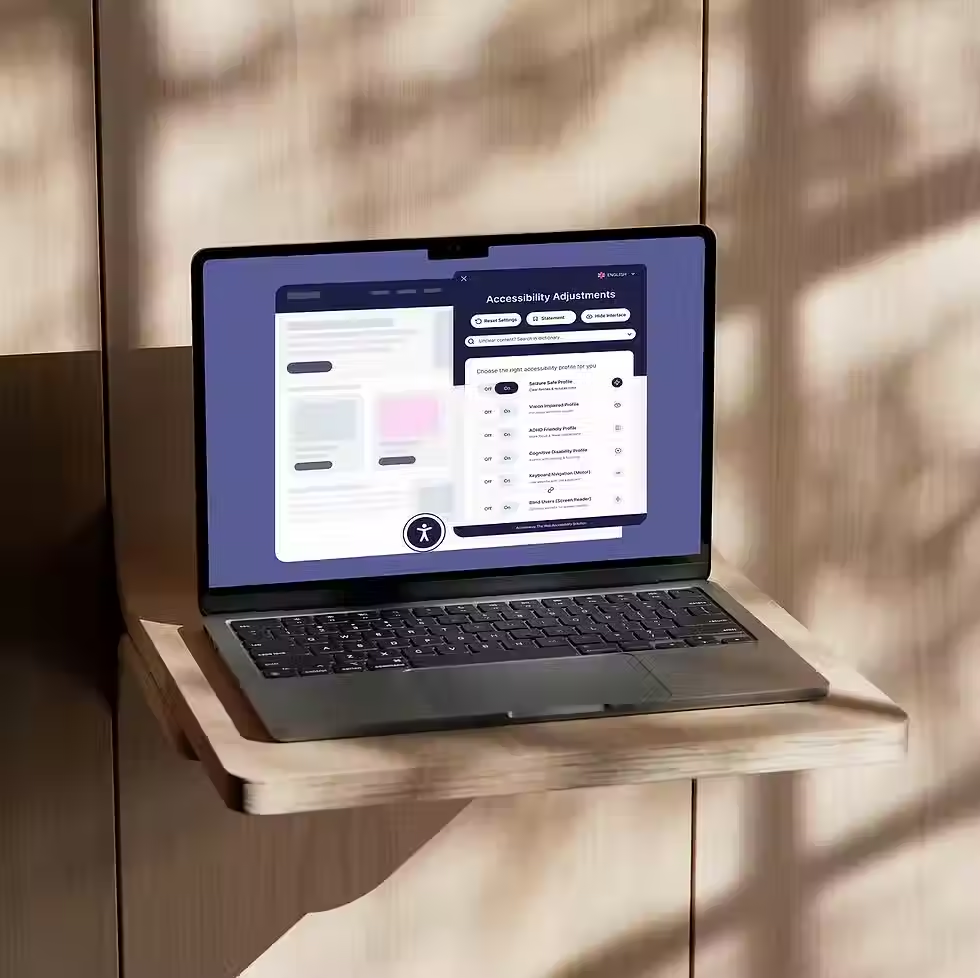
Accessiway Widget is an IA-based web accessibility solution that makes websites usable for people with disabilities. Replacing a time-consuming and costly manual task, Accessiway Widget automates much of the remediation process for websites of all sizes. It does this by combining two different applications that work simultaneously: an accessibility interface and AI processes, so high levels of accessibility can be achieved and maintained for any website. Accessiway is an ecosystem of web accessibility services and through the combination of these, it will be possible to strive for 100 per cent legal compliance. Our technology is able to achieve compliance for most of the criteria set out in WCAG 2.1AA, but to be fully compliant it may still be necessary to make manual changes as well as to take care of certain aspects of WCAG that do not relate solely to the frontend of a website.

Operation

Add a Title

// ACCESSIBILITY: // - Place an invisible Button element over #questionRow for keyboard focus

Operation

Add a Title

Accessiway is a leading digital accessibility company that helps organizations make their websites, e-commerce platforms, and digital assets accessible to everyone, including people with disabilities.

We combine technology, legal expertise, and accessibility specialists to support businesses in meeting international accessibility standards such as WCAG, EAA, and ADA. Our mission is to make the web inclusive, compliant, and usable for all.

Still have questions? Talk to our team about the right accessibility partnership for you.

bottom of page